






Connectivity Guide: A Comprehensive Troubleshooting Resource
Navigating network issues demands a systematic approach; this guide empowers IT professionals with essential techniques for swift diagnosis and resolution of connectivity problems.
Network connectivity is fundamental to modern computing, enabling communication between devices and access to vital resources. Understanding its principles is crucial for effective troubleshooting. This guide focuses on diagnosing and resolving common issues, from intermittent disruptions to complete outages. Initial steps often involve power cycling network devices – modems, routers, and switches – as a surprisingly effective first response.
Furthermore, utilizing built-in diagnostic tools, like the Windows Network Diagnostic, provides a quick assessment. A solid grasp of basic networking concepts, alongside practical techniques, will empower you to efficiently restore connectivity and minimize downtime.

Understanding Basic Networking Concepts
A foundational understanding of networking is key. This includes grasping the roles of devices like modems, routers, and switches in facilitating data transmission. IP addresses – static or dynamically assigned – are essential for device identification. DNS servers translate domain names into IP addresses, enabling website access.
MAC addresses uniquely identify network interfaces. Recognizing potential IP conflicts and understanding how data packets travel across networks are also vital. Familiarity with these concepts allows for targeted troubleshooting, moving beyond simply restarting devices and towards pinpointing the root cause of connectivity issues.
Common Network Connectivity Problems
Network issues manifest in various ways. Frequent problems include complete loss of connectivity, impacting all devices, or intermittent disruptions causing frustrating dropouts. Slow network speeds hinder productivity, often stemming from bandwidth limitations or congestion. High ping times and packet loss signal underlying network instability, affecting real-time applications.
These issues can arise from faulty hardware, misconfigured settings, interference, or external factors. Identifying the specific symptom is the first step towards effective troubleshooting, guiding the diagnostic process and narrowing down potential causes.
Intermittent Connectivity Issues
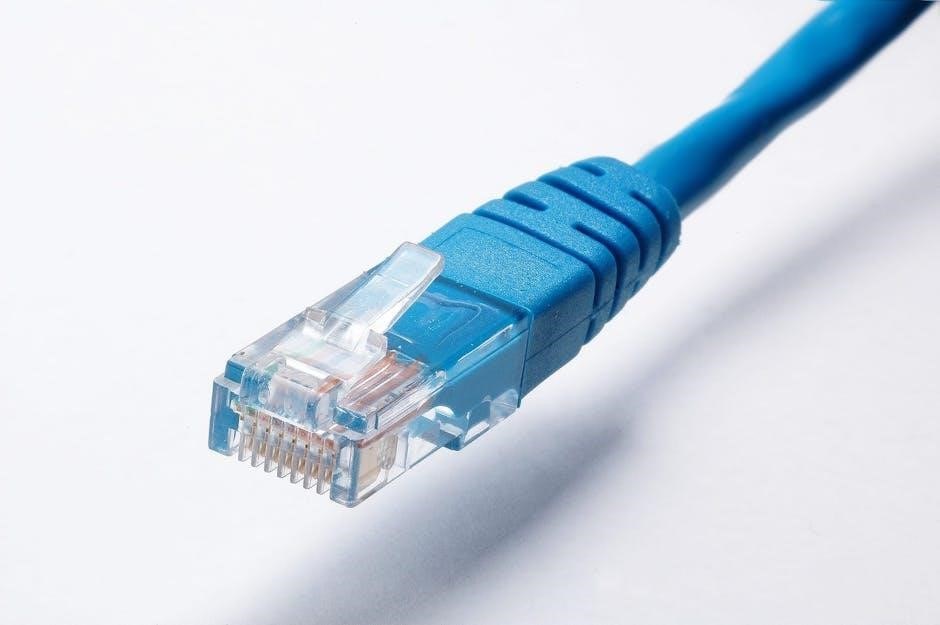
Sporadic network drops are notoriously difficult to diagnose. These issues often present as brief outages, followed by restored connection, making pinpointing the root cause challenging. Potential culprits include wireless interference from other devices, overloaded network channels, or unstable modem/router connections.
Investigating requires monitoring network stability over time, looking for patterns in the disconnections. Checking device logs and utilizing network diagnostic tools can reveal temporary errors or signal fluctuations that contribute to these frustrating, unpredictable disruptions.
Slow Network Speeds
Reduced network performance impacts productivity and user experience. Initial troubleshooting should involve a simple power cycle of all network devices – modem, router, switches, and access points – as this often resolves temporary glitches. High ping times or packet loss, as identified by diagnostic tools, suggest underlying connectivity problems.
Further investigation includes checking for bandwidth-intensive applications, verifying cable integrity, and assessing potential wireless interference. Regularly testing internet speed provides a baseline for comparison and helps identify performance degradation.
Complete Loss of Connectivity
A total network outage requires immediate attention. Begin by verifying physical connections – ensuring cables are securely plugged into both devices and the wall. If multiple computers are affected, power cycling the modem and router is a crucial first step, allowing two to three minutes for a complete reset.
If the issue persists, check the switch port status for the affected device’s MAC address. The Windows Network Diagnostic tool can also automatically identify and attempt to fix common problems. Confirm internet service provider (ISP) status for potential outages.
Troubleshooting Tools & Techniques
Effective network troubleshooting relies on utilizing the right tools. The Windows Network Diagnostic is a quick starting point, automatically detecting and resolving basic issues. Command-line tools like ping and traceroute are invaluable for identifying packet loss and network latency. Examining the MAC address and switch port status reveals connectivity at the hardware level.
Power cycling devices – modems, routers, switches – often resolves temporary glitches. Analyzing network cables for damage and checking port security settings are also vital techniques for a comprehensive approach.
Using the Windows Network Diagnostic Tool
The Windows Network Diagnostic is a built-in utility for basic connectivity checks. Accessible by right-clicking the network icon in the system tray and selecting “Troubleshoot problems” (Windows 10) or “Diagnose network problem” (Windows 11), it automatically identifies common issues like incorrect IP configuration or problems with DNS servers.
While often resolving simple problems, it may not detect complex network faults. It provides a starting point, offering suggestions or attempting automatic repairs. It’s a user-friendly first step before employing more advanced techniques.
Ping and Traceroute Commands
Ping and Traceroute are fundamental command-line tools for network diagnostics. Ping verifies reachability to a destination by sending ICMP echo requests, revealing latency and packet loss. Traceroute maps the path packets take, identifying each hop along the way and associated delays.
High ping times or packet loss, as noted by Jones IT, indicate connectivity issues. Analyzing Traceroute output helps pinpoint where bottlenecks or failures occur. These commands are invaluable for isolating network problems beyond basic connectivity tests.
Checking MAC Address and Switch Port Status
Verifying the MAC address of a device and its corresponding switch port status is crucial for troubleshooting. If no network connectivity exists, obtaining the device’s MAC address – as suggested by a Reddit r/it discussion – allows you to check the port status on the switch.
This confirms if the port is active, enabled, and correctly associated with the device. Identifying MAC address conflicts or disabled ports quickly isolates connectivity problems at the physical layer.
Power Cycling Network Devices
A foundational troubleshooting step involves power cycling network devices. Experts recommend unplugging modems and routers, waiting two to three minutes, and then reconnecting them – a process often resolving connectivity issues without hardware faults (NCC). This simple reset can clear temporary glitches.
Jones IT emphasizes power cycling modems, routers, switches, and access points (APs) as a basic solution for slow network connections. It’s a quick and effective first step in diagnosing many network problems.
Modem and Router Reset Procedure
Initiate the reset by disconnecting power to both the modem and router. Allow a minimum of two to three minutes for complete power drainage – this clears temporary configurations (NCC). Reconnect the modem first, waiting for it to fully synchronize before powering on the router.
This sequence ensures proper communication between devices. A full power cycle often resolves intermittent connectivity issues and restores optimal network performance. Remember to verify indicator lights for successful reconnection.
Switch and Access Point Power Cycle
To reset network flow, power cycle switches and access points (APs). Disconnect power from each device individually, waiting approximately 30 seconds before reconnecting. Begin with the core switch, then proceed to any cascaded switches and finally, the APs.
This staged approach minimizes network disruption. Power cycling clears temporary errors and refreshes device configurations, often resolving connectivity problems (Jones IT). Verify operational status via indicator lights post-reboot, ensuring a stable network foundation.
Analyzing Network Cables and Connections
Physical layer integrity is crucial for stable connectivity. Inspect all network cables for visible damage – bends, kinks, or frayed ends. Ensure cables are securely seated in their respective ports on devices like switches and computers.
A loose connection or damaged cable can cause intermittent or complete loss of signal. If issues persist, try swapping cables with known good ones to isolate the problem. Checking the physical layer is a fundamental troubleshooting step (Reddit r/it).
Identifying Damaged Cables
Visually inspect network cables for physical defects. Look for cuts, abrasions, or crushed sections along the cable’s length. Bent or broken connector tabs are also indicators of damage. A cable tester can verify continuity and identify shorts or opens within the wiring.
Damaged cables disrupt signal transmission, leading to connectivity issues. Replacing suspect cables is often the quickest solution. Prioritize checking cables in high-traffic areas or those frequently moved (Jones IT).
Checking Port Security Settings
Port security features on network switches limit access to specific MAC addresses, enhancing network security. However, misconfigured settings can inadvertently block legitimate devices. Verify that the switch port is configured to allow the connecting device’s MAC address (Reddit r/it).
If port security is enabled, ensure the MAC address hasn’t been exceeded or that sticky MAC learning is functioning correctly. Incorrect configurations can cause intermittent or complete loss of connectivity, requiring adjustments to the switch’s settings.
Wireless Connectivity Troubleshooting
Wireless issues often stem from signal interference or outdated drivers. Begin by analyzing signal strength to ensure a robust connection. Common culprits include microwave ovens, cordless phones, and other wireless devices creating interference (PCMag).
Updating wireless network drivers is crucial for optimal performance and compatibility. Investigate potential sources of interference and attempt to relocate the wireless router for improved signal propagation. Regularly check for driver updates to maintain a stable wireless connection.
Signal Strength Analysis
Assessing wireless signal strength is the first step in troubleshooting. Utilize built-in operating system tools or third-party applications to measure signal levels. Weak signals indicate distance, obstructions, or interference. A strong signal (typically -30dBm to -60dBm) ensures reliable connectivity.
Consider the router’s placement; central, open locations are ideal. Walls, metal objects, and electronic devices can degrade signal quality. Mapping signal strength throughout the coverage area helps identify dead zones requiring attention or potential range extenders.
Wireless Interference Sources
Numerous sources can disrupt wireless signals, leading to intermittent connectivity or slow speeds. Common culprits include microwave ovens, Bluetooth devices, cordless phones, and even neighboring Wi-Fi networks operating on the same channel. Physical obstructions like concrete walls and metal structures also contribute to interference.
Identifying these sources requires investigation. Utilize Wi-Fi analyzer tools to detect channel congestion and overlapping signals. Changing the router’s wireless channel can often mitigate interference. Minimizing obstructions and distancing interfering devices improves signal clarity and stability.
Updating Wireless Drivers
Outdated or corrupted wireless network drivers can significantly impact connectivity, causing dropped connections, slow speeds, or complete inability to connect to a Wi-Fi network. Regularly updating these drivers is a crucial troubleshooting step.
Drivers can be updated through Device Manager in Windows, or by downloading the latest version from the manufacturer’s website (Intel, Broadcom, etc.). Ensure compatibility with your operating system. A clean driver installation – completely removing the old driver before installing the new one – often resolves persistent issues. Rebooting after updating is essential.
IP Address Configuration Issues
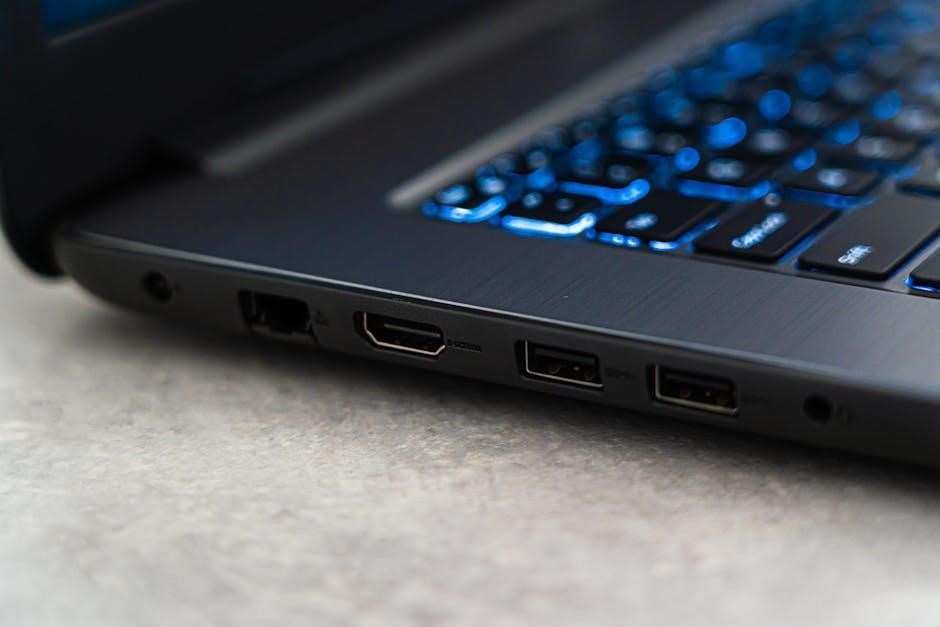
Incorrect IP address settings are a frequent cause of network connectivity problems. Devices require a unique IP address to communicate on a network. Conflicts arise when two devices share the same IP, leading to intermittent or complete loss of connection.
Understanding the difference between static and dynamic IP addressing is key. Dynamic (DHCP) automatically assigns addresses, while static requires manual configuration. Resolving IP conflicts involves identifying the conflicting devices and reconfiguring one to use a different, available address, or switching to DHCP.
Static vs. Dynamic IP Addressing
Choosing between static and dynamic IP addressing impacts network stability and manageability. Dynamic IP addresses, assigned via DHCP, simplify network administration, automatically configuring devices and preventing conflicts. This is ideal for most home and small office networks.
Static IP addresses, manually configured, remain constant. They’re crucial for servers or devices needing consistent access, like printers. However, manual management increases the risk of configuration errors and IP conflicts. Careful planning and documentation are essential when utilizing static IP assignments.
IP Conflict Resolution
IP address conflicts disrupt network communication, causing intermittent connectivity. Identifying the source requires investigation; tools like `ping` and `arp -a` can reveal duplicate IP addresses. The first step is to determine which device is incorrectly configured.
If using DHCP, release and renew the IP address on the affected device. For static IPs, verify each device’s configuration, ensuring uniqueness. Changing one device’s IP address, often to one outside the DHCP range, typically resolves the conflict and restores network functionality.
DNS Server Problems
Domain Name System (DNS) issues prevent translating domain names into IP addresses, hindering website access. Symptoms include slow loading times or inability to reach specific sites. Initial troubleshooting involves verifying DNS server settings on the affected device. Consider switching to a public DNS server, like Google’s (8.8.8.8 and 8.8.4.4) or Cloudflare’s (1.1.1.1), to bypass potential ISP issues.
Flushing the DNS cache removes outdated entries, often resolving temporary problems. Incorrect DNS configuration or server outages are common causes requiring further investigation.
Flushing DNS Cache
Flushing the DNS cache removes temporarily stored DNS records, resolving issues caused by outdated or corrupted entries. On Windows, open Command Prompt as administrator and type ipconfig /flushdns then press Enter. For macOS, use the command sudo dscacheutil -flushcache; sudo killall -HUP mDNSResponder in Terminal.
This process forces the system to retrieve fresh DNS information, often fixing website access problems. Regularly flushing the cache can improve browsing speed and reliability, especially after changing DNS servers.
Changing DNS Servers
Switching DNS servers can significantly improve internet speed and reliability. While your ISP provides DNS servers, public options like Google (8.8.8.8 and 8.8.4.4) or Cloudflare (1.1.1.1) often offer faster response times. To change settings on Windows, navigate to Network and Sharing Center, adapter settings, and IPv4 properties.
Enter the preferred and alternate DNS server addresses. On macOS, modify network settings in System Preferences. Testing different DNS servers can resolve connectivity issues and enhance overall browsing experience.
Firewall and Security Software Interference
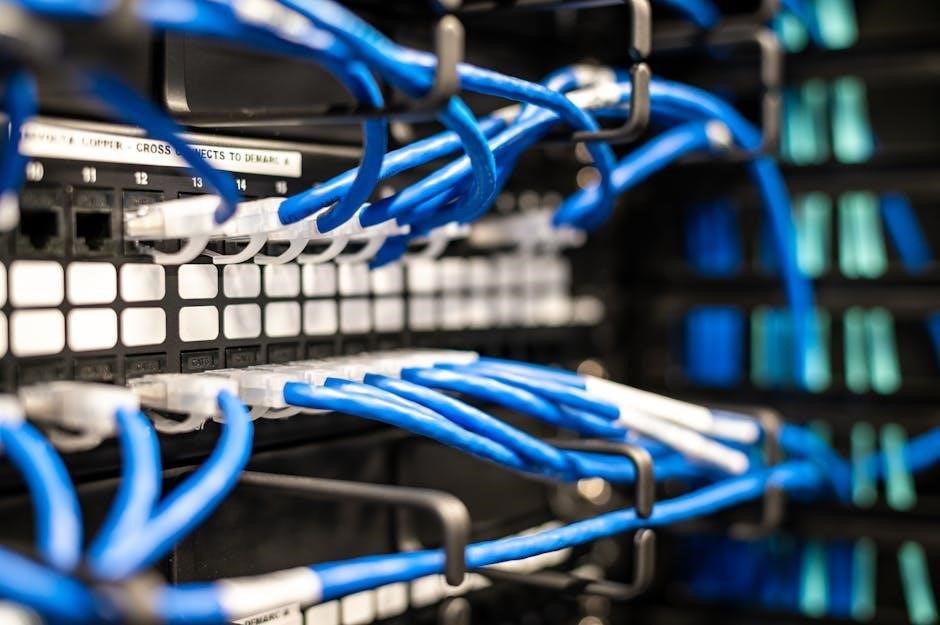
Firewalls and security suites can inadvertently block legitimate network traffic, causing connectivity problems. Temporarily disabling these programs – with caution – helps determine if they are the source of the issue. Check firewall logs for blocked connections related to the affected application or service.
Ensure your security software isn’t overly restrictive. Whitelisting specific applications or ports within the firewall settings can resolve interference. Remember to re-enable security software promptly after testing!
Temporarily Disabling Firewalls
Disabling the firewall is a crucial diagnostic step, but proceed with caution! It exposes your system to potential threats, so only do this for brief testing periods. If connectivity is restored after disabling the firewall, it confirms interference. Document the exact steps taken and the timeframe.
Remember to immediately re-enable the firewall after testing. Investigate firewall settings to identify and adjust rules causing the blockage, rather than leaving it disabled long-term. Prioritize security!
Checking Security Software Logs
Security software often logs blocked connections, providing valuable clues. Examine the logs of your antivirus, internet security suite, and any host-based intrusion prevention systems. Look for entries coinciding with connectivity issues, noting the source and destination IP addresses, ports, and the reason for the block.
These logs can reveal if legitimate traffic is being incorrectly flagged as malicious. Analyze the log details to understand the security software’s decision-making process and adjust settings accordingly, creating exceptions where necessary.
Advanced Troubleshooting Steps
When basic steps fail, delve into advanced analysis. Packet loss analysis, using tools like Wireshark, reveals dropped packets indicating network congestion or hardware faults. Investigate high ping times – consistently elevated latency suggests routing issues or overloaded servers.
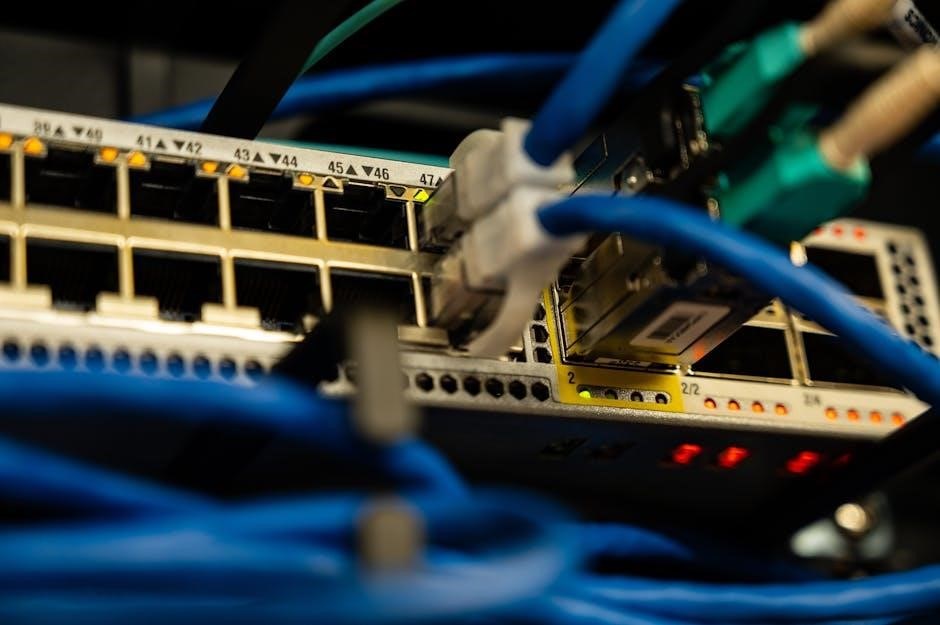
Examine network device CPU and memory utilization for bottlenecks. Consider running pathping (Windows) for detailed route analysis. These techniques require a deeper understanding of networking principles but can pinpoint elusive connectivity problems.
Packet Loss Analysis
Packet loss signifies data failing to reach its destination, impacting performance and reliability. Tools like Ping and Traceroute reveal loss percentages along the network path. High packet loss often indicates congestion, faulty hardware (cables, routers, NICs), or software errors.
Wireshark provides detailed packet captures for in-depth analysis, identifying lost segments and potential causes. Investigate if loss is consistent or intermittent, localized to a specific hop, or widespread. Addressing packet loss is crucial for stable connectivity.
High Ping Time Investigation
Elevated ping times indicate latency, delaying data transmission and causing sluggish performance. Begin by pinging local devices, then progressively distant servers to pinpoint the source of the delay. Traceroute identifies hops with significant latency, revealing potential bottlenecks.
Factors include network congestion, distance to the server, router processing load, and faulty network hardware. Investigate bandwidth limitations and ensure Quality of Service (QoS) isn’t misconfigured. High ping times demand systematic investigation for optimal network responsiveness.
Enterprise Network Troubleshooting
Enterprise networks require a layered troubleshooting approach. Utilize network monitoring systems to establish baselines and detect anomalies in real-time. Comprehensive log analysis, examining switch ports and firewall logs, reveals connectivity disruptions and security events.
Centralized management tools facilitate remote diagnostics and configuration changes. Prioritize issues based on impact and utilize a structured escalation procedure. Regularly scheduled network assessments proactively identify vulnerabilities and optimize performance, ensuring business continuity and user satisfaction.
Network Monitoring Systems
Robust network monitoring is crucial for proactive issue detection. These systems provide real-time visibility into network performance, tracking bandwidth utilization, latency, and packet loss. Alerts notify administrators of anomalies, enabling swift intervention before widespread disruptions occur.
Effective tools offer historical data analysis, identifying trends and potential bottlenecks. Integration with log analysis platforms provides a holistic view of network health. Selecting a system aligned with enterprise needs—scalability, features, and reporting capabilities—is paramount for maintaining optimal connectivity.
Log Analysis for Connectivity Issues
Detailed log analysis is fundamental to pinpointing connectivity root causes. Examining system logs, firewall logs, and application logs reveals patterns and error messages often missed by real-time monitoring. Correlating events across multiple logs provides a comprehensive understanding of issue progression.
Focus on timestamps surrounding connectivity disruptions; Search for error codes, failed authentication attempts, or unusual network activity. Utilizing log aggregation and analysis tools streamlines this process, enabling faster identification and resolution of complex network problems, ultimately improving uptime.
Remote Access Connectivity
Secure remote access is crucial for modern IT support, yet prone to unique connectivity challenges. Troubleshooting begins by verifying the remote user’s internet connection and ensuring correct VPN client configuration. Common issues include firewall interference blocking VPN traffic or incorrect authentication credentials.
Investigate Remote Desktop Protocol (RDP) settings, confirming port 3389 is open and accessible. Packet loss and high latency significantly impact remote session quality; analyze network paths for bottlenecks. Regularly update remote access software for security and performance enhancements.
VPN Troubleshooting
Virtual Private Network (VPN) connectivity issues often stem from authentication failures or network configuration conflicts. Begin by verifying the user’s VPN credentials and ensuring the VPN client software is up-to-date. Check firewall settings on both the client and server sides, confirming VPN traffic (typically UDP port 1194 or TCP port 443) isn’t blocked.
Investigate DNS resolution problems, as incorrect DNS settings can prevent VPN connection establishment. Examine VPN server logs for error messages providing clues about the root cause. Consider MTU size adjustments if fragmentation issues are suspected.
Remote Desktop Protocol (RDP) Issues
Remote Desktop Protocol (RDP) problems frequently arise from network connectivity, firewall restrictions, or incorrect RDP settings. First, confirm basic network access between the client and host machines using ping. Verify the RDP service is running on the target computer and that the firewall allows RDP traffic (typically TCP port 3389).
Authentication failures can also cause RDP connection errors; ensure correct user credentials are used. Investigate potential conflicts with other remote access software. Check event logs on both machines for detailed error messages aiding diagnosis.
Documentation and Reporting
Thorough documentation is crucial for effective network troubleshooting and future reference. Maintain a detailed network troubleshooting log, recording the date, time, affected users, specific symptoms, troubleshooting steps taken, and the final resolution. This log aids in identifying recurring issues and patterns.
Create standardized reporting templates to communicate connectivity problems and their solutions to stakeholders. Include relevant details like IP addresses, error messages, and network diagrams. Proper documentation facilitates knowledge sharing and improves overall network management.
Creating a Network Troubleshooting Log

A well-maintained log is the cornerstone of effective network issue resolution. Begin each entry with a timestamp and a clear description of the reported problem – what exactly isn’t working? Document the affected user(s) and device(s), including IP addresses and MAC addresses when possible.
Meticulously record every troubleshooting step attempted, even those that didn’t resolve the issue. Note the results of each test (ping, traceroute, etc.). Finally, detail the resolution – what fixed the problem – and any preventative measures taken.
Escalation Procedures
When initial troubleshooting fails, a clear escalation path is crucial. Define specific criteria for escalation – for example, issues persisting beyond 30 minutes, impacting critical systems, or affecting multiple users. Document the next level of support (e.g., senior technician, network engineer) and their contact information.
Before escalating, ensure a comprehensive troubleshooting log is prepared, detailing all steps taken and results obtained. Clearly communicate the problem’s impact and urgency to the receiving party. Follow up to confirm resolution and document the final outcome in the log.